One inbox for new messages
See recent SMS, WhatsApp and Telegram conversations. Search, filter by channel or sender, open a thread and mark one or all messages as read without hiding them.
THE COMMUNICATION CENTER
Read and send SMS, WhatsApp and Telegram messages, follow mobile calls, review AI replies and keep an eye on connected phones from one dashboard page.
Use what you need today. Connect other channels when you are ready.
EXPLORE THE REAL DASHBOARD
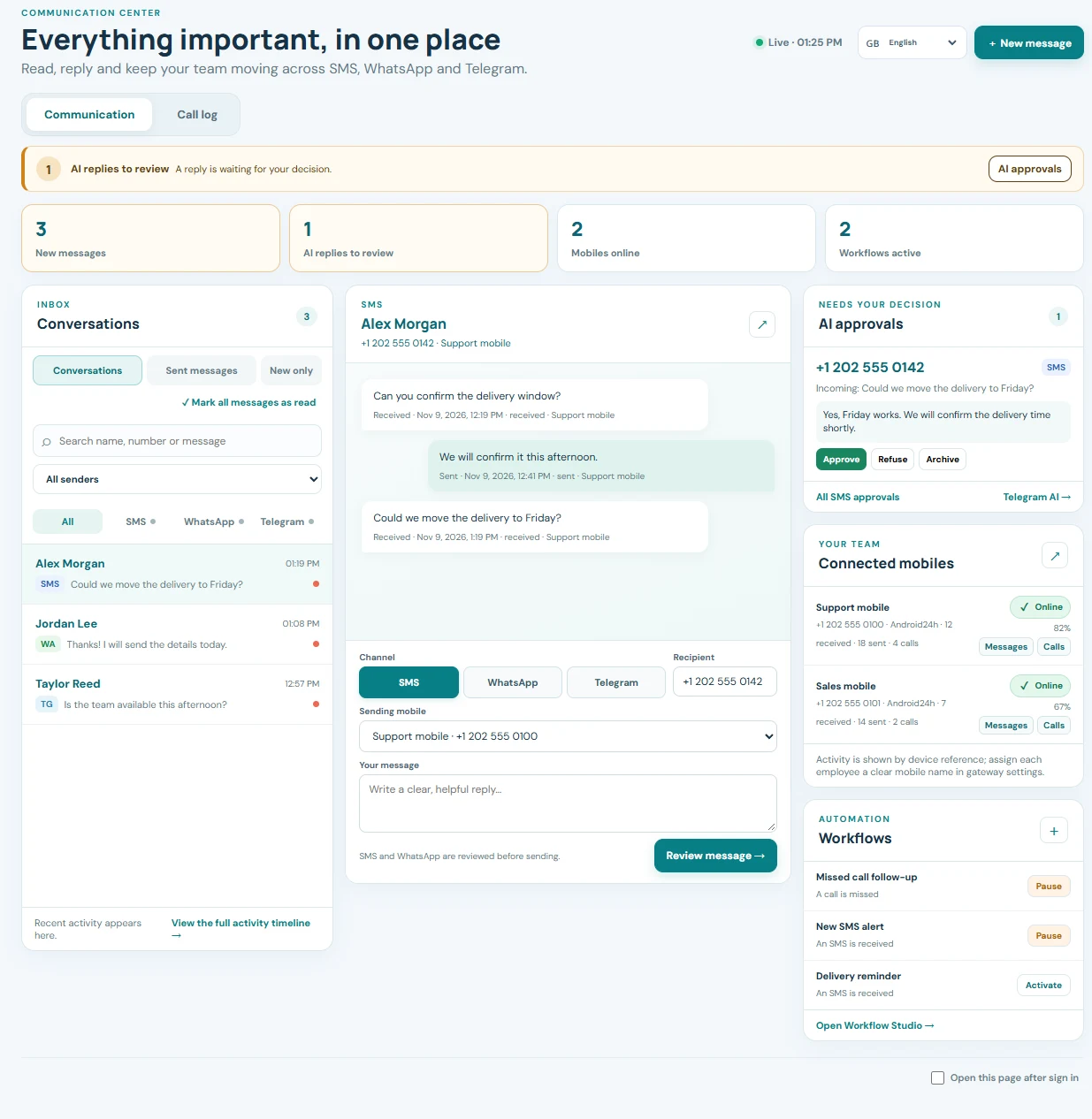
Choose a view, then select a numbered point to see what you can do. These are screenshots of the actual dashboard with example data in place of customer information.
Swipe the screenshot sideways to explore the full interface.


Real dashboard interface · names, numbers and messages replaced with example data
START WITH WHAT NEEDS ATTENTION
The page brings recent activity and the next useful action together, so you can work without jumping between separate menus.
See recent SMS, WhatsApp and Telegram conversations. Search, filter by channel or sender, open a thread and mark one or all messages as read without hiding them.
See pending SMS and Telegram AI replies and go directly to the approval workflow when a human decision is required.
Open missed, incoming and outgoing call logs. Search by contact or number and narrow the view to one connected mobile.
FROM INBOX TO ACTION
Open a conversation, review recent messages and respond from the same page. You can also start a new message and select SMS, WhatsApp or Telegram in one click.
Open the Communication CenterSelect a connected mobile for SMS or a connected WhatsApp account. For Telegram, find the contact by name or username.
Switch to sent messages to inspect recent outgoing activity and its sending status.
Open a contact history to see SMS, WhatsApp and call events in chronological order. Link a Telegram contact to a phone number when you want to bring those histories together.
A USEFUL VIEW FOR EVERY ROLE
Keep incoming messages, replies and missed calls in one place. Make this page your dashboard start page if it is where your day begins.
Spot new conversations and pending AI approvals quickly. Filter activity by channel or sending mobile before you respond.
See which connected phones are online, their battery level and recent activity. Give each mobile a clear name to recognize the employee or role using it.
CONTROL WITHOUT EXTRA TABS
Review active workflows, pause or activate one, or create a simple event-based workflow from the center. New workflows start paused so you can check them before activation.
Workflow automationThe center refreshes automatically and can show browser alerts for new messages or AI approvals after you grant notification permission. You can still refresh manually at any time.
GET STARTED
Install and connect the SMSMobileAPI app to send SMS and share the mobile activity you choose. Enable received SMS and call synchronization in the app when you need those events.
Connect WhatsApp or Telegram separately if you want their messages in this workspace. Each channel appears according to its connection and receiving settings.
Visit the Communication Center, choose a conversation or compose a new message. You can set it to open automatically after sign-in.
The center shows recent account activity, not an unlimited archive. SMS and call events depend on mobile synchronization. WhatsApp and Telegram need their own connections; Telegram reception is optional. Browser alerts require permission and the page to remain open.
No. Start with SMS or the channel you already use. Unconnected channels show a setup path and do not block the rest of the page.
Yes. Choose a connected SMS mobile or WhatsApp sender before sending. Telegram uses the connected account and a selected contact.
Yes. Filter messages and call logs by connected mobile. The team view also shows connection status, battery and recent activity for each phone.
Only if you configure automatic sending in the AI reply settings. When human approval is enabled, pending SMS and Telegram drafts appear for review.
Yes, while the page is open it checks for updates automatically. Optional browser notifications require your permission.
Open one workspace, see what needs attention and respond using the connected channel that fits the contact.
Open the Communication Center
Tell us who we are speaking with. Your details stay attached to this private support conversation.