
Trigger reminders from events
Start from the event or action your team already uses.
Automation & CRM
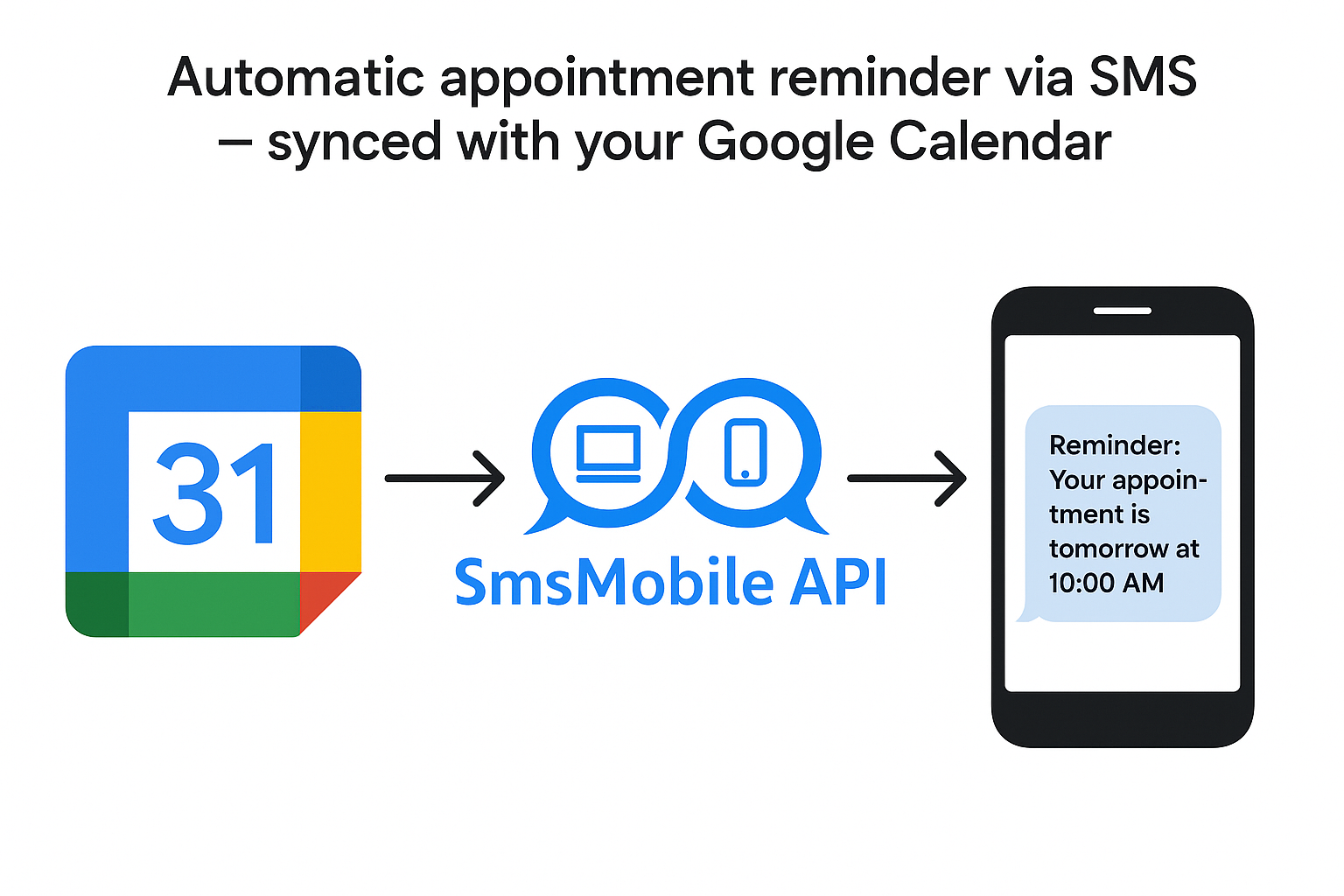
Calendar automationConnect Google Calendar events to SMSMobileAPI and schedule reminders that are delivered through your connected mobile phone. Event details can become the context for each message.


What the connection unlocks
A focused integration surface, connected to the same authenticated API, device routing and operational visibility used across SMSMobileAPI.
Start from the event or action your team already uses.
Map the business context into a useful, timely message.
Route the operation through your connected SMSMobileAPI environment.
Review the result and keep the workflow observable.

Official mobile application
SMS and call operations pass through the official SMSMobileAPI app installed on your connected phone. The app securely pairs the device with your account, synchronizes authorized events and links the mobile network to the dashboard and REST API.


Connection flow
Google Calendar provides the business trigger or developer interface. SMSMobileAPI authenticates and routes the request. Your connected device or configured channel completes the communication operation.
A business event, workflow action or explicit request starts the process.
Authentication, payload validation, routing and activity tracking remain centralized.
The selected connected channel performs the operation and returns a result.
Built for practical work
Connect the trigger, map the message context and keep the resulting activity visible in the SMSMobileAPI workflow.

Connect the trigger, map the message context and keep the resulting activity visible in the SMSMobileAPI workflow.
Connect the trigger, map the message context and keep the resulting activity visible in the SMSMobileAPI workflow.
Connect the trigger, map the message context and keep the resulting activity visible in the SMSMobileAPI workflow.
Implementation path
Use a non-production recipient and controlled data while configuring the integration. Never place a production API key in browser code, screenshots or public repositories.
Validate an API key safely →Complete this step, verify the result, then continue to the next part of the connection.
Complete this step, verify the result, then continue to the next part of the connection.
Complete this step, verify the result, then continue to the next part of the connection.
Complete this step, verify the result, then continue to the next part of the connection.
See the workflow
Visual references from the existing SMSMobileAPI integration experience help teams recognize the relevant setup and messaging surfaces.
Keep exploring
 Commerce
Send WooCommerce SMS and WhatsApp notifications from your own number.
Explore integration → Commerce
Send Shopify SMS and WhatsApp notifications from your own number.
Explore integration → Automation & CRM
Connect Zapier to your real mobile phones for SMS, notifications and call-event automation.
Explore integration →Ready to connect?
Create an account, connect a phone and validate the first workflow with a three-day free trial.

Tell us who we are speaking with. Your details stay attached to this private support conversation.