In today's fast-paced world, ensuring that your clients remember their appointments is crucial for maintaining a professional image and minimizing no-shows. Whether you're a healthcare provider, a beauty salon owner, or a consultant, sending timely SMS reminders can significantly improve your client engagement. This guide will walk you through the steps to set up SMS appointment reminders using SMSMobileAPI, ensuring that your clients receive notifications directly from your mobile number.
Comprendre le problème
Many businesses struggle with clients forgetting their appointments, leading to lost revenue and wasted time. Traditional methods, such as email reminders, often get overlooked due to overflowing inboxes. SMS reminders, on the other hand, have a higher open rate and are more likely to be seen promptly. However, implementing an SMS reminder system can seem daunting, especially for those without technical expertise.
Steps to Set Up SMS Appointment Reminders
With SMSMobileAPI, setting up SMS appointment reminders is straightforward and does not require any technical knowledge. Here’s how to do it:
1. Connect Your Mobile Device
- Téléchargez l'application SMSMobileAPI sur votre Android ou iPhone.
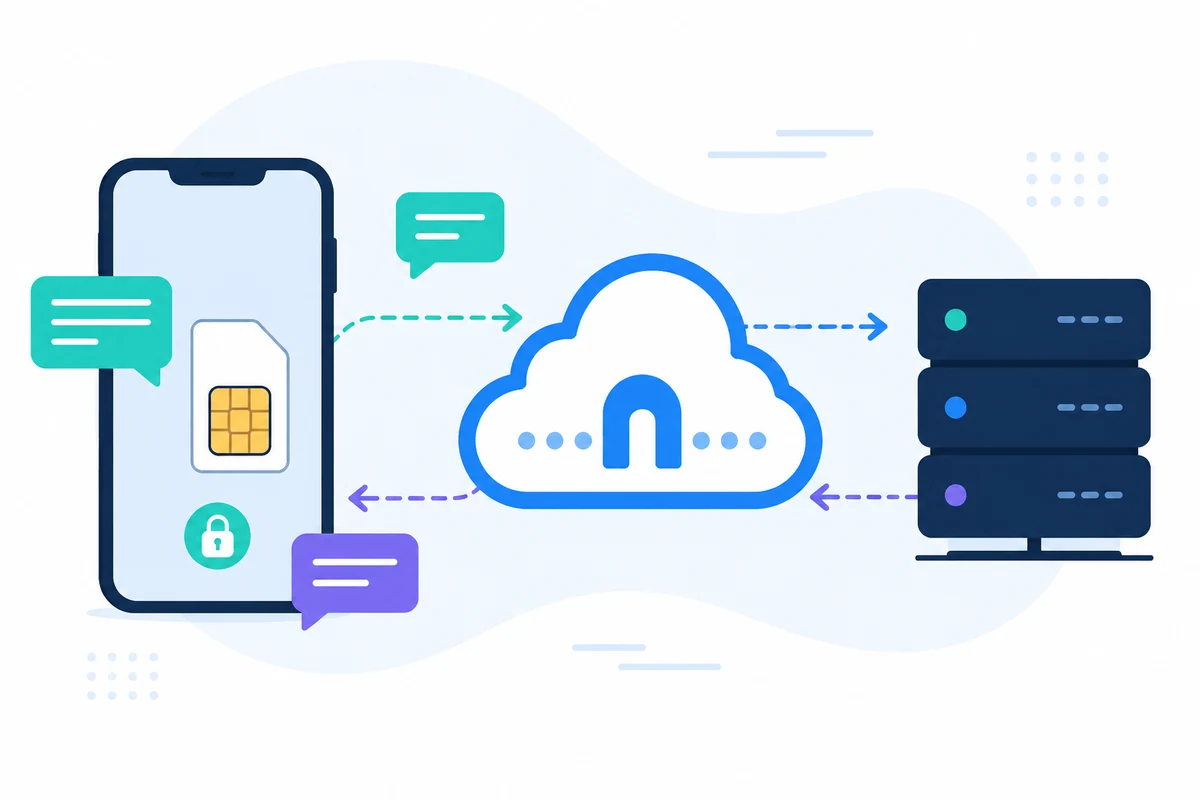
- Follow the setup instructions to connect your mobile device and its SIM card to the SMSMobileAPI dashboard.
- Ensure that your mobile number is verified, as this will be the number from which your reminders are sent.
2. Access the Dashboard
Once your mobile device is connected, log in to your SMSMobileAPI dashboard. This user-friendly interface allows you to manage your SMS campaigns without any prior experience in coding or API integrations.
3. Create a Reminder Template
To streamline the process, you can create a template for your SMS reminders. Utilize dynamic message personalization to customize your messages. For instance:
Hi [client_name], this is a reminder for your appointment on [event_date] at [event_start]. Looking forward to seeing you at [location]!
In this template, replace the placeholders with actual data from your Google Calendar appointments. This ensures that each message is personalized for the recipient.
4. Schedule Your Reminders
- Navigate to the "Scheduling" section of the dashboard.
- Select the date and time you wish to send the reminders. You can set reminders for 1, 2, or even 4 days in advance.
- Attach the reminder template you created earlier.
5. Test the System
Before going live, it’s essential to test the system. Schedule a test reminder for yourself or a colleague to ensure everything works smoothly and the message is received as intended.
Limites à prendre en considération
While SMSMobileAPI offers an efficient way to send reminders, there are a few limitations to keep in mind:
- Mobile Plan Restrictions: SMS messages utilize your mobile plan, so ensure you have sufficient credits to avoid additional costs.
- Sujets de couverture : The SMS service is dependent on your mobile network coverage. If you're in an area with poor signal, messages may not be sent or received promptly.
Flux de travail pertinent SMSMobileAPI
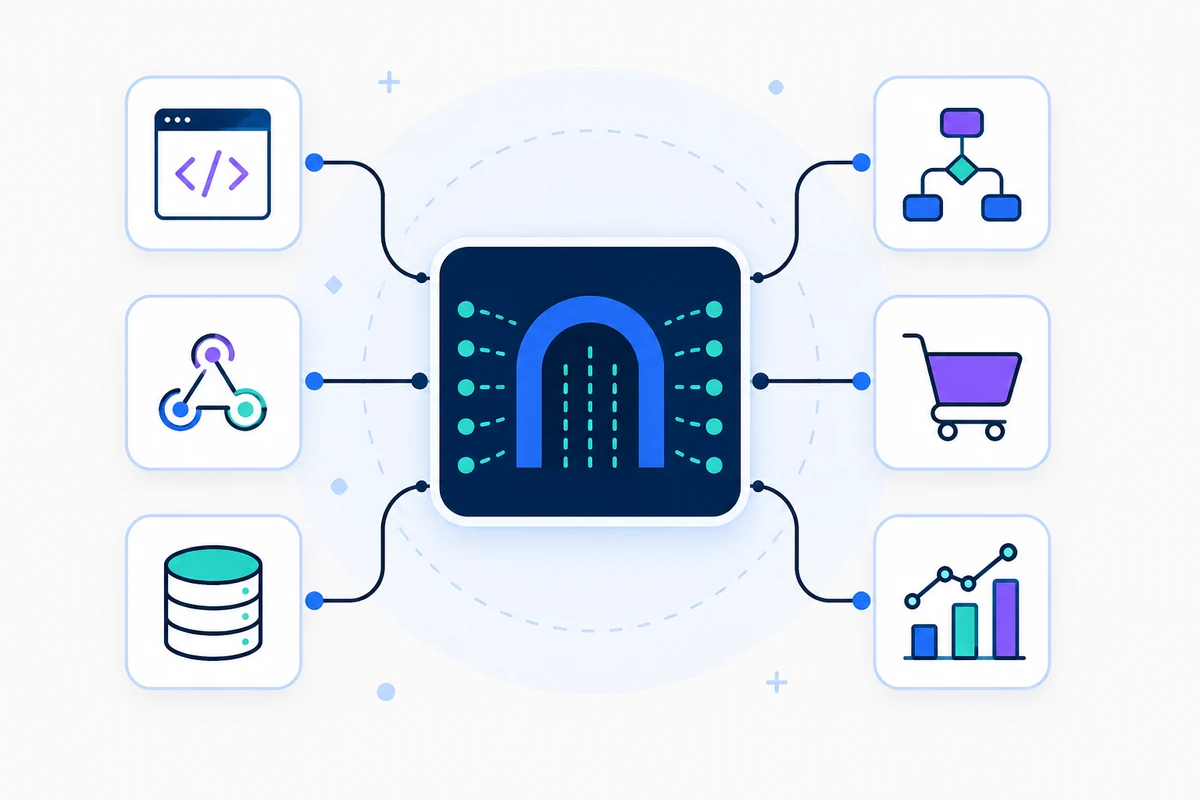
Integrating SMS appointment reminders into your existing workflow is seamless with SMSMobileAPI. Here’s a brief overview of how it fits into your business operations:
- Clients book appointments via your scheduling system.
- Appointment details are automatically synced to your Google Calendar.
- Using the SMSMobileAPI dashboard, you schedule SMS reminders based on these calendar events.
- Your clients receive reminders directly from your mobile number, enhancing communication authenticity.
- Any replies or confirmations from clients are sent back to your phone, allowing for real-time communication.
Prochaines étapes
Now that you know how to set up SMS appointment reminders using SMSMobileAPI, you can start reducing no-shows and improving client satisfaction. For further details on integration, visit our integration page to explore how SMSMobileAPI can fit seamlessly into your business workflow.