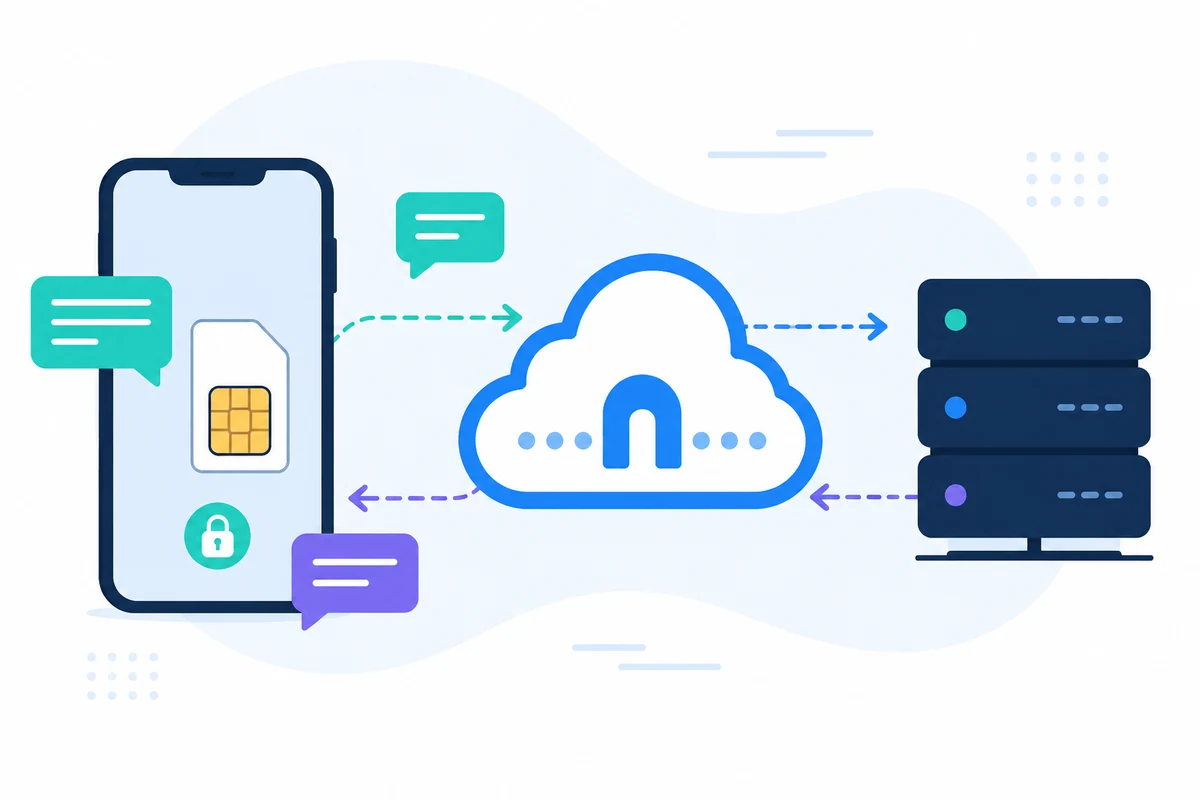
In today's fast-paced world, ensuring that clients and contacts remember their appointments is crucial for businesses. Missed appointments can lead to lost revenue and decreased customer satisfaction. One effective solution is to automate SMS reminders that are sent directly from your mobile phone. This guide will walk you through the steps to set up SMS reminders using SMSMobileAPI, ensuring seamless communication with your clients.
Comprender el problema
Many businesses struggle with the challenge of reminding clients about upcoming appointments. Traditional methods often involve manual calls or emails, which can be time-consuming and prone to human error. Additionally, clients may ignore emails or miss calls, leading to no-shows. Automating this process through SMS reminders can significantly improve attendance rates and enhance client satisfaction.
Steps to Set Up SMS Reminders
Here’s a practical step-by-step guide to setting up SMS reminders using SMSMobileAPI:
- Connect Your Mobile Device:
To get started, you need to connect your Android or iPhone to the SMSMobileAPI platform. This allows the system to send SMS messages directly from your existing number.
- Download the SMSMobileAPI app on your mobile device.
- Follow the instructions to link your phone to the SMSMobileAPI dashboard.
- Access the Dashboard:
Once your mobile device is connected, log into the SMSMobileAPI dashboard. Here, you can manage your SMS settings and create reminders.
- Create a Reminder Template:
In the dashboard, navigate to the templates section to create a new SMS reminder template. Utilize dynamic message personalization to make your messages more relevant. You can use keywords like:
[event_date]- Date of the event[event_start]- Starting time of the event[event_end]- Ending time of the event[location]- Location of the event
An example message could be: "¡Hola! Solo un recordatorio rápido de su cita el [event_date] a las [event_start]. La reunión tendrá lugar en [location] y se espera que termine a las [event_end]."
- Schedule Your Reminders:
With your template ready, you can now schedule when the SMS reminders will be sent. Choose a time frame that works best for your business—1, 2, or even 3 days before the appointment.
- Test Your Setup:
Before going live, it’s crucial to test your SMS reminders. Send a test message to ensure that the dynamic keywords are replaced correctly and that the message is sent from your mobile number.
- Monitor Responses:
Once your reminders are live, monitor the responses. Any replies will come directly to your mobile phone, allowing for immediate engagement with clients.
Limitaciones a considerar
While SMS reminders are a powerful tool, there are some limitations to keep in mind:
- Mobile Plan Limits: SMS messages sent through SMSMobileAPI will utilize your existing mobile plan. Ensure that your plan has sufficient SMS allowances to avoid additional charges.
- Network Coverage: The effectiveness of SMS delivery is contingent on mobile network coverage. If your area has poor coverage, it may affect message delivery.
- Time Zone Considerations: Be mindful of clients in different time zones when scheduling reminders to ensure they receive them at appropriate times.
Integrating SMSMobileAPI with Your Workflow
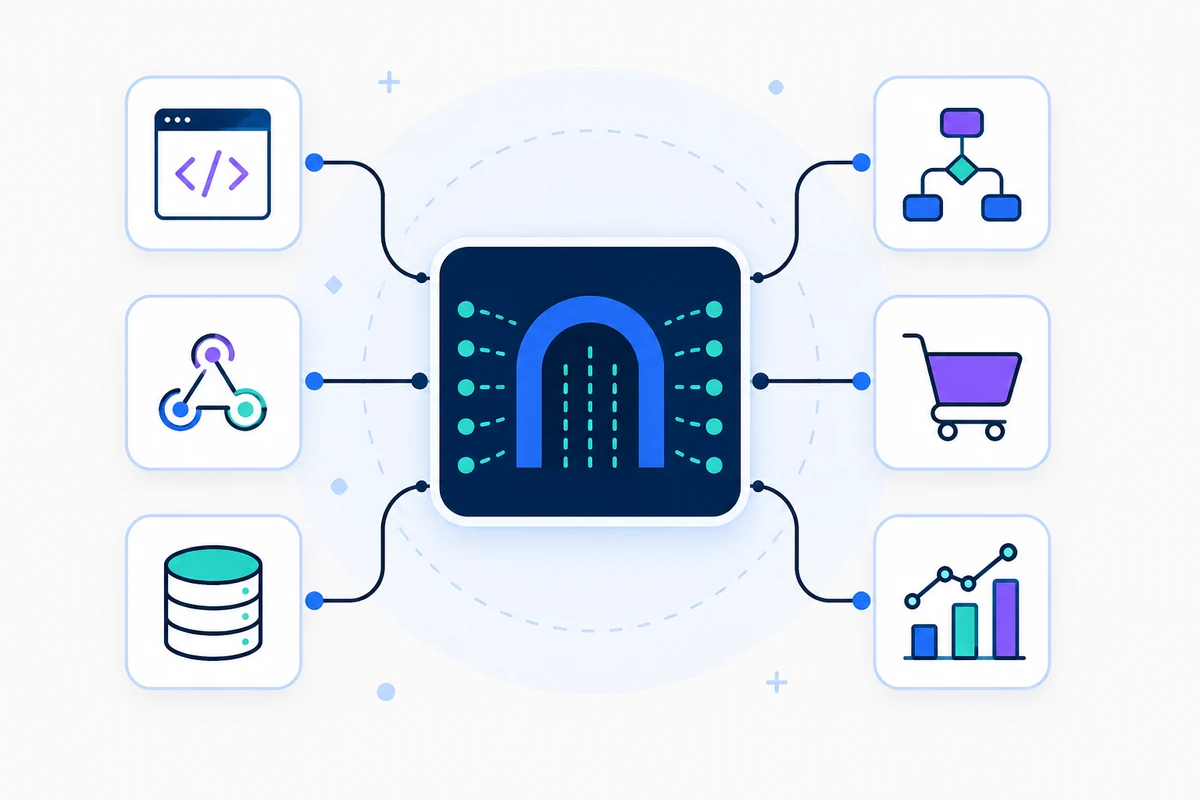
Integrating SMS reminders into your workflow with SMSMobileAPI is straightforward. The platform allows you to connect with various applications seamlessly. For instance, you can integrate with Google Calendar to automatically pull event details and send reminders without manual entry. This integration ensures that your reminders are timely and relevant.
For more information on how to set up integrations, visit our integration page.
Conclusión
Automating SMS reminders with SMSMobileAPI can significantly enhance client communication and reduce the likelihood of missed appointments. By following the steps outlined above, you can set up a reliable reminder system that works seamlessly with your existing mobile device.
Ready to get started? Explore our getting started guide to begin your journey with SMSMobileAPI today!