短信从您自己的手机发出。了解工作原理
石窟画API-first architecture安全设备配对交付可见度多设备控制已版本文件
回到博客上

September 22, 2026 · 3 min read

Title: How to Integrate SMS Reminders with Google Calendar Using SMSMobileAPI

In today’s fast-paced world, keeping track of appointments and important dates can be a daunting task. Missed meetings can lead to lost opportunities, especially for professionals who rely heavily on time management. Thankfully, SMS reminders are an effective way to ensure that…

商务、客户关系管理和与移动信息连接的自动化工具
企业一体化

In today’s fast-paced world, keeping track of appointments and important dates can be a daunting task. Missed meetings can lead to lost opportunities, especially for professionals who rely heavily on time management. Thankfully, SMS reminders are an effective way to ensure that you and your clients never miss an important appointment. This guide will walk you through the process of integrating SMS reminders with Google Calendar using SMSMobileAPI.

Understanding the Problem

Many professionals struggle with manually reminding clients about appointments or meetings. This can be time-consuming and often leads to missed communications. The challenge lies in automating reminders while ensuring they come from a familiar source—your own phone number. Using SMS reminders not only enhances your professionalism but also improves client satisfaction by reducing no-shows.

Steps to Integrate SMS Reminders with Google Calendar

Here’s a step-by-step guide on how to set up SMS reminders using SMSMobileAPI and Google Calendar:

Step 1: Connect Your Mobile Device

  • Start by downloading the SMSMobileAPI app on your Android or iPhone.
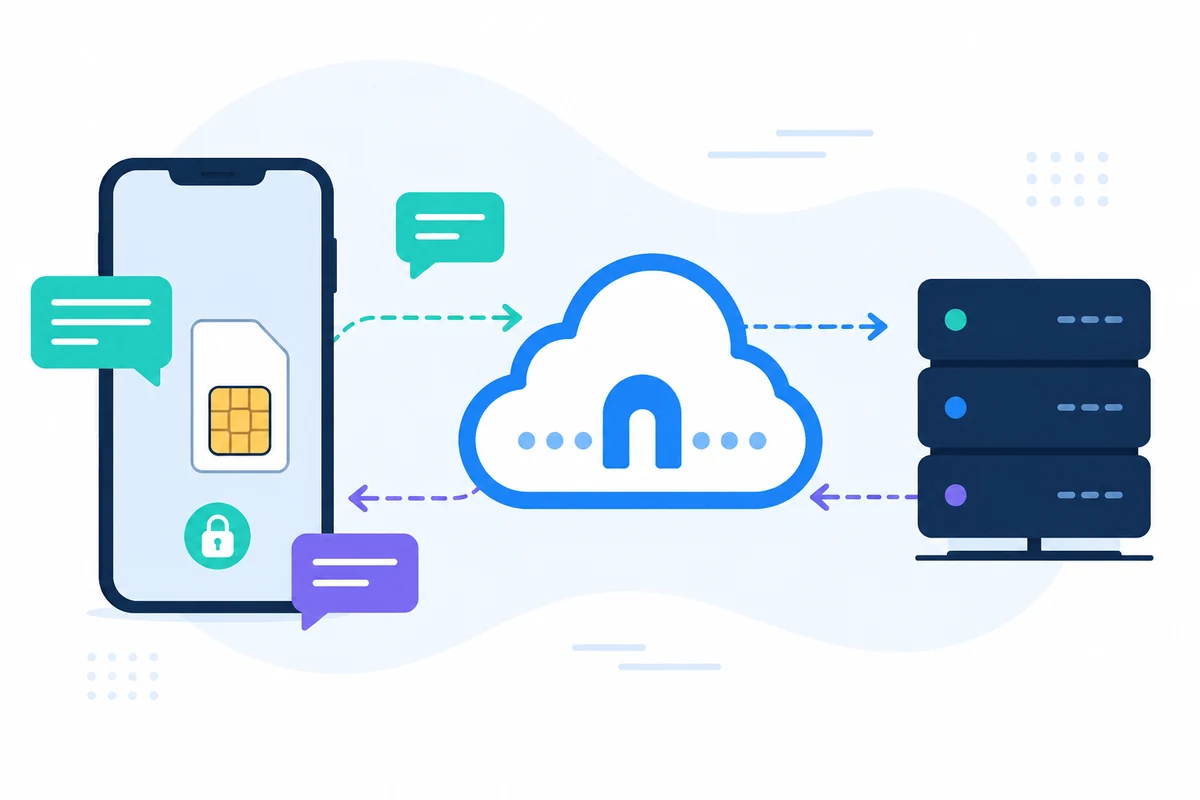
  • Follow the instructions to connect your mobile device to the SMSMobileAPI dashboard. This process involves linking your existing phone number and SIM card to the platform.

Step 2: Access the SMSMobileAPI Dashboard

  • Log in to your SMSMobileAPI dashboard. This user-friendly interface will allow you to manage your SMS settings easily.
  • Navigate to the integration section where you can connect your Google Calendar.

Step 3: Integrate Google Calendar

  • Click on the Google Calendar integration option in the dashboard.
  • Authorize SMSMobileAPI to access your Google Calendar. This step is essential for pulling appointment data into the SMS reminder system.

Step 4: Set Up SMS Reminders

  • Once your Google Calendar is integrated, you can create SMS reminders. Use the dynamic message personalization feature to customize your messages.
  • For example, you can set a reminder message like: “Hi! Just a quick reminder for your appointment on [event_date] at [event_start]. The meeting will take place at [location] and is expected to end by [event_end].”

Step 5: Schedule Your Reminders

  • In the dashboard, select the time frame for when you want the reminders to be sent (e.g., 1 day, 2 days, or 4 days before the event).
  • Save your settings, and the system will automatically send SMS reminders from your mobile device.

Honest Limitations

While SMSMobileAPI offers a robust solution for sending SMS reminders, there are some limitations to consider:

  • SMS reminders rely on your mobile network’s coverage. If you are in an area with poor reception, messages may not be sent.
  • Since the SMS is sent through your mobile plan, message delivery is subject to your carrier’s policies and charges.
  • Customization options are limited to the dynamic fields provided by SMSMobileAPI. You may not be able to include additional custom fields that are not part of the integration.

Relevant SMSMobileAPI Workflow

By following the steps outlined above, you can create a seamless workflow that connects your Google Calendar with SMS reminders. This integration allows you to:

  • Send automated reminders that come from your own number, making them familiar to your clients.
  • Receive replies directly to your mobile device, ensuring that all communications are handled smoothly.
  • Manage your appointments and reminders effortlessly through the intuitive SMSMobileAPI dashboard.

For additional functionalities, consider exploring the call management feature to handle incoming and missed calls efficiently. You can find more information on that 这里.

后续步骤

Ready to streamline your appointment reminders? Start your integration journey with SMSMobileAPI today by visiting our start page for detailed instructions and support.

付诸实践

连接你今天的第一个电话。

免费开始 ~