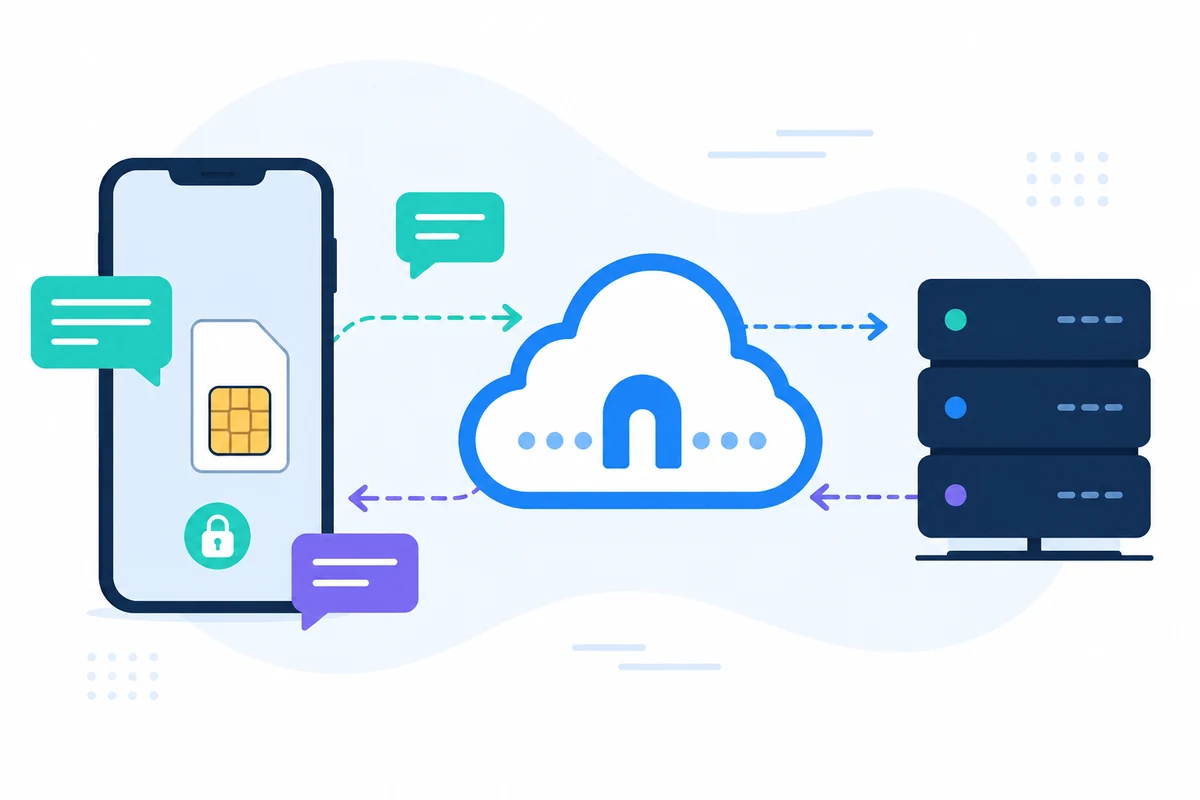
У сучасному світі швидко запаковані, зберігаючи треки зустрічей та важливі дати можуть бути сміливими. З’являються зустрічі, які можуть призвести до втрати можливостей, особливо для професіоналів, які значно покладаються на часовий менеджмент. Ми можемо самі зателефонувати одержувачу і узгодити зручний час і місце вручення квітів, а якщо необхідно, то збережемо сюрприз. Цей посібник проведе вас через процес інтегрування SMS нагадування з Google Calendar за допомогою SMSMobileAPI.
Розуміння проблеми
Багато фахівців, які борються з ручним нагадуванням клієнтів про призначення або зустрічі. Це може бути трудомістким і часто призводить до пропущених повідомлень. Під час забезпечення роботи з знайомим джерелом — за номером телефону. За допомогою нагадування SMS не тільки підвищує Ваш професіоналізм, але й покращує задоволеність клієнтів, зменшуючи кількість пропозицій.
Кроки інтегрувати SMS Нагадування з Google Calendar
Ось покрокова інструкція як налаштувати нагадування SMS за допомогою SMSMobileAPI і Google Calendar:
Крок 1: Підключіть мобільний пристрій
- Завантажте програму SMSMobileAPI на Android або iPhone.
- Дотримуйтесь інструкцій, щоб підключити мобільний пристрій до панелі інструментів SMSMobileAPI. Цей процес передбачає підключення до існуючого номера телефону та SIM-карти на платформу.
Крок 2: Доступ до Dashboard SMSMobileAPI
- УвійтиSMSMobileAPIдешборд. Цей зручний інтерфейс дозволить вам легко керувати налаштуваннями SMS.
- Навігацій до розділу інтеграції, де можна підключити Google Calendar.
Крок 3: Інтеграція Google Calendar
- Натисніть на параметр інтеграції Google Calendar у панельній панелі.
- Авторизація SMSMobileAPI для доступу до Google Calendar. Цей крок є важливим для нагадування про призначення нагадування SMS.
Крок 4: Встановити SMS Нагадування
- Після того, як ваш Google Calendar інтегрований, ви можете створити нагадування SMS. Використовуйте функцію синхронізації повідомлень, щоб налаштувати ваші повідомлення.
- Наприклад, ви можете встановити нагадування про те, що: «Привіт! Нагадуємо про те, що ви можете отримати на сайті [event date]. На зустрічі відбудеться [локація] та очікується закінчення [event end].
Крок 5: Заплануйте свої зміни
- У приладовій панелі виберіть часовий кадр, коли ви хочете нагадування надсилати (наприклад, 1 день, 2 дні, 4 дні до заходу).
- Заощаджуйте налаштування, а система автоматично надішле нагадування SMS від вашого мобільного пристрою.
Найпопулярніші оголошення
У той час як SMSMobileAPI пропонує надійний рішення для відправки нагадування SMS, є деякі обмеження, які слід розглянути:
- SMS нагадує про покриття мобільного зв'язку. Якщо ви перебуваєте в зоні з поганим прийомом, повідомлення не можуть бути відправлені.
- З моменту відправки SMS через мобільний план, доставка повідомлень підлягає політиці та зарядам перевізника.
- Параметри налаштування обмежені динамічними полями, що надаються SMSMobileAPI. Ви не зможете включати додаткові спеціальні поля, які не входять до складу інтеграції.
Релевант SMSMobileAPI Робочий потік
За наступними кроками, викладеними вище, ви можете створити безшовний робочий процес, який з'єднує вашу нагадування Google Calendar з нагадуваннями SMS. Ця інтеграція дозволяє:
- Нагадуємо, що вони знайомляться з вашими клієнтами.
- Отримувати відповіді безпосередньо на мобільний пристрій, забезпечуючи, що всі комунікації обробляються плавно.
- Керуйте записами та нагадуваннями, що не можуть бути використані через інтуїтивно зрозумілий панель SMSMobileAPI.
Для додаткових функціональних можливостей слід розглянути можливості керування викликами для ефективного ведення вхідних та пропущених дзвінків. Дізнатися більше про те, що ви можете дізнатися більше про те, щотут.
Наступні кроки
Читання потокового повідомлення нагадування? Запускайте свою інтеграцію з SMSMobileAPI сьогодні, відвідавши наш сервісПочаток сторінкидля детальної інструкції та підтримки.