Introduktion
I dagens snabba värld kan hantering av möten och påminnelser effektivt göra en betydande skillnad i ditt företags framgång. Oavsett om du är frilansare, vårdpersonal eller kör en salong, kan automatisering spara tid och se till att dina kunder aldrig missar ett möte. I denna handledning kommer vi att vägleda dig steg för steg om hur du sömlöst integrerar SMS-påminnelser med din Google Calendar genom vår användarvänliga plattform.
Steg 1: Ställ in ditt konto
Först, gå över till vårAPI & Developer Docsför att skapa ditt konto. Uppställningsprocessen är utformad för att vara enkel, även för dem utan teknisk kunskap. När ditt konto är aktivt loggar du in för att komma åt den intuitiva instrumentpanelen.
Steg 2: Anslut Google Calendar
Därefter måste du ansluta din Google Calendar till vår applikation. Följ dessa enkla steg:
- Navigera till avsnittet "Integrations" i instrumentbrädan.
Klicka på "Konnect Google Calendar".
- Godkänna nödvändiga behörigheter.
Denna process gör det möjligt för vår plattform att komma åt dina kalenderhändelser för att automatisera SMS-påminnelser utan ansträngning.
Steg 3: Schema SMS påminnelser
Nu när din kalender är ansluten är det dags att schemalägga dina SMS-påminnelser. Här är hur:
Välj ett evenemang från din Google Calendar.
Välj antalet dagar innan det evenemang du vill att SMS ska skickas (1, 2, 3 eller 4 dagar).
3. Förkorta ditt meddelande med dynamiska sökord som [event date], [event start], [event end] och [lokalisering]. Till exempel:
"Hej! En snabb påminnelse om ditt möte på [event date] på [event start]. Och mötet skall ske på [platsen].”
På så sätt får dina kunder personliga meddelanden, vilket skapar en mer professionell touch.
Steg 4: Njut av Seamless Communication
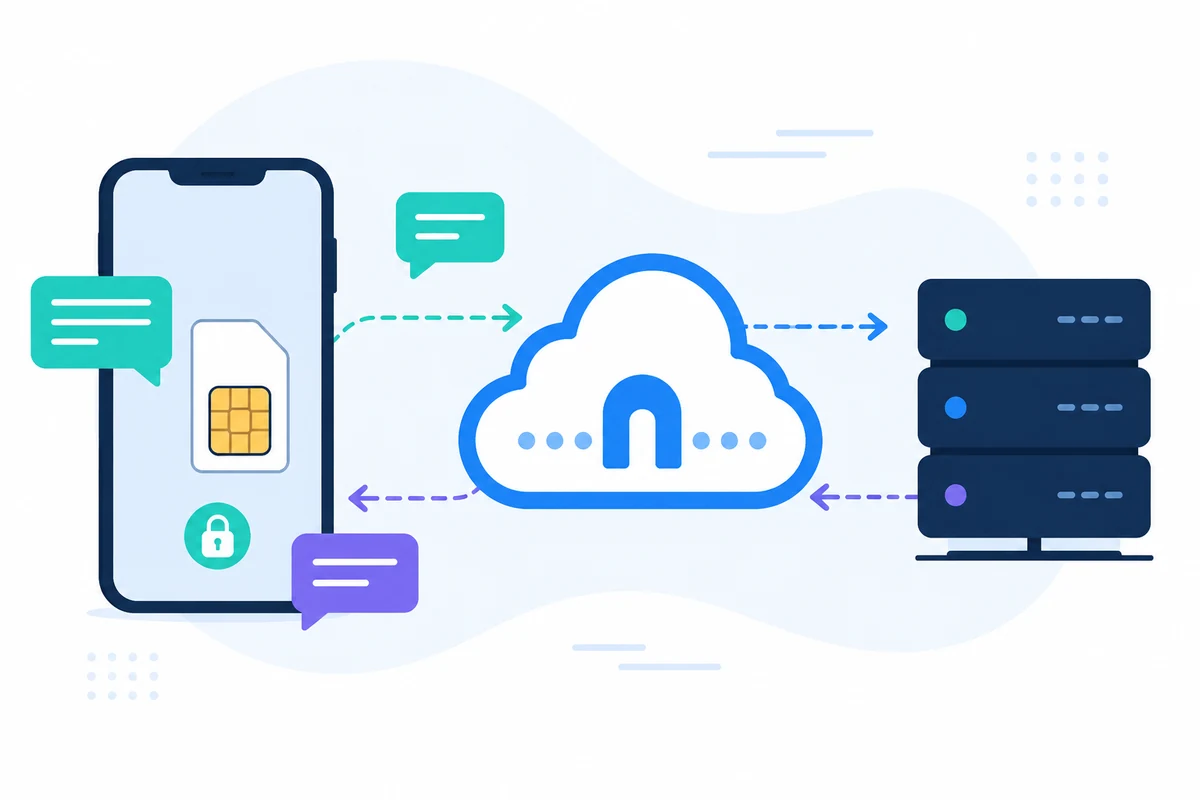
När du har konfigurerats skickas dina SMS-påminnelser automatiskt från din mobiltelefon, så dina kunder känner igen ditt vanliga nummer. De kan svara direkt, så att de kan göra smidiga, pågående samtal utan extra kostnader. Alla SMS hanteras säkert, hålla dina data privata.
Verkliga fördelar
Genom att implementera detta system sparar du tid, minskar no-shows och säkerställer effektiv kommunikation med dina kunder. Dessutom är det 100% privat och säkert, och vidarebefordra alla meddelanden via din enhet utan några datalagringsproblem.
Slutsats
Integrera SMS-påminnelser med Google Calendar förbättrar inte bara din professionella bild utan effektiviserar också ditt arbetsflöde. Vänta inte på att öka din produktivitet! För mer information och detaljerad vägledning, besök vårVerktyg & Förändringar loggaoch lärHur det fungerarBörja omvandla dina mötes påminnelser idag!