In today's fast-paced world, keeping track of appointments and important events can be a challenge. Many professionals and businesses struggle to remind clients or team members about scheduled meetings, which can lead to missed opportunities and inefficient time management. One effective solution is to send automated SMS reminders directly from your mobile phone using SMSMobileAPI integrated with Google Calendar. This guide will walk you through the process step-by-step, ensuring you can set up SMS reminders seamlessly.
Understanding the Need for SMS Reminders
In various industries, timely reminders can significantly enhance client satisfaction and improve attendance rates. Whether you’re a healthcare provider reminding patients of their appointments, a freelancer notifying clients of scheduled calls, or a real estate agent confirming property visits, sending SMS reminders can streamline communication. However, managing these reminders manually can be time-consuming and prone to errors.
Setting Up SMS Reminders with SMSMobileAPI
To automate your SMS reminders, you’ll need to follow these practical steps:
Step 1: Sign Up for SMSMobileAPI
- Visit the SMSMobileAPI website.
- Complete the registration process to create your account.
Step 2: Connect Your Mobile Device
After signing up, you must connect your Android or iPhone to SMSMobileAPI:
- Download the SMSMobileAPI app from the App Store or Google Play.
- Open the app and log in using your SMSMobileAPI credentials.
- Follow the on-screen instructions to connect your mobile device to the SMSMobileAPI dashboard.
Passo 3: Integrare Google Calendar
Once your mobile is connected, you can integrate it with Google Calendar:
- Log in to your SMSMobileAPI dashboard.
- Navigate to the integrations section and select Google Calendar.
- Grant SMSMobileAPI access to your Google Calendar account.
Passaggio 4: pianifica promemoria SMS
With the integration complete, you can now set up automated SMS reminders:
- In your SMSMobileAPI dashboard, go to the scheduling section.
- Select the event from your Google Calendar you want to send reminders for.
- Compose your SMS message. You can use dynamic message personalization to include specific details, such as the event date and time. For example:
Hi! Just a quick reminder for your appointment on [event_date] at [event_start].
Understanding the Workflow
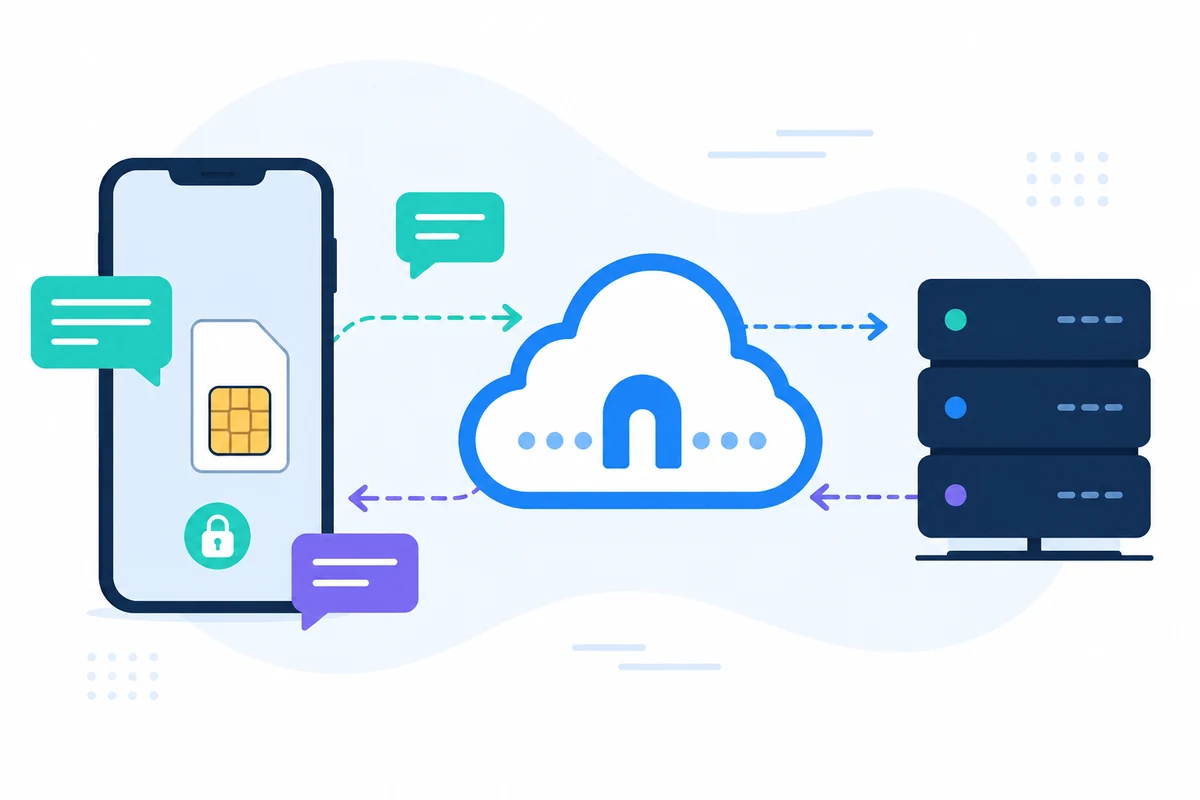
When the scheduled reminder time arrives, SMSMobileAPI automatically sends the SMS from your connected mobile device. This means your clients will receive the message from your usual number, ensuring they recognize the sender. If they reply, their responses will go directly to your phone, just like any other SMS.
Limitazioni di considerare
While SMS reminders can greatly enhance communication efficiency, there are some limitations to keep in mind:
- Mobile Coverage: Ensure that your mobile device has coverage at all times to avoid failed SMS deliveries.
- Message Length: Keep your messages concise to comply with SMS character limits and maintain clarity.
- Time Zone Differences: Be aware of different time zones when scheduling reminders for clients in various locations.
Conclusione
Integrating SMS reminders with Google Calendar using SMSMobileAPI is a straightforward process that can significantly enhance your communication strategy. By automating reminders, you can reduce no-shows and improve client engagement, all while maintaining a personal touch through your mobile number.
For a detailed guide on setting up your SMS gateway and exploring more integrations, check out our documentation at SMSMobileAPI Documentation. Start maximizing your productivity today!