Referentieschermafdruk
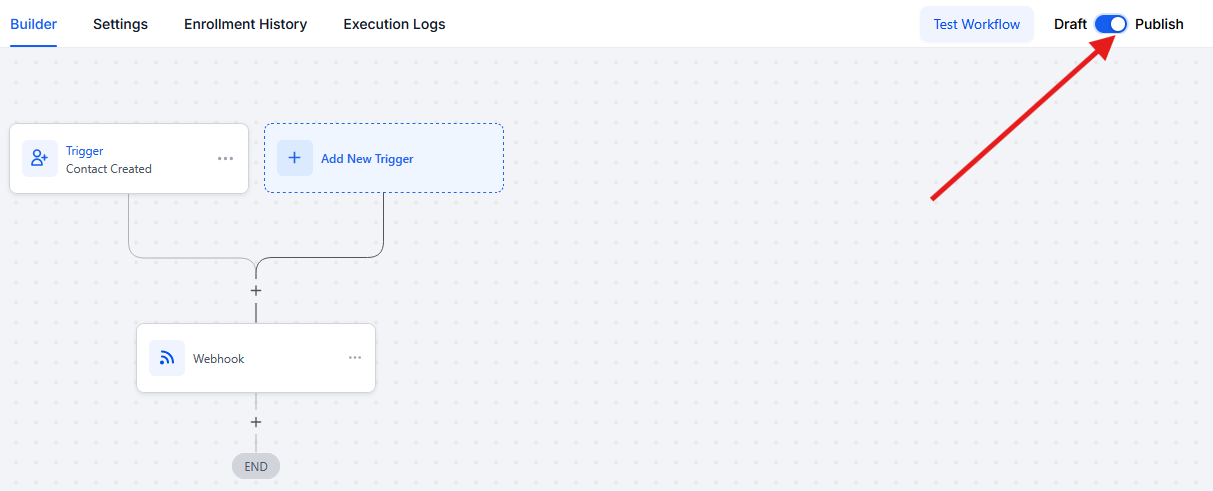
Zo zal je Webhook stap eruit zien:
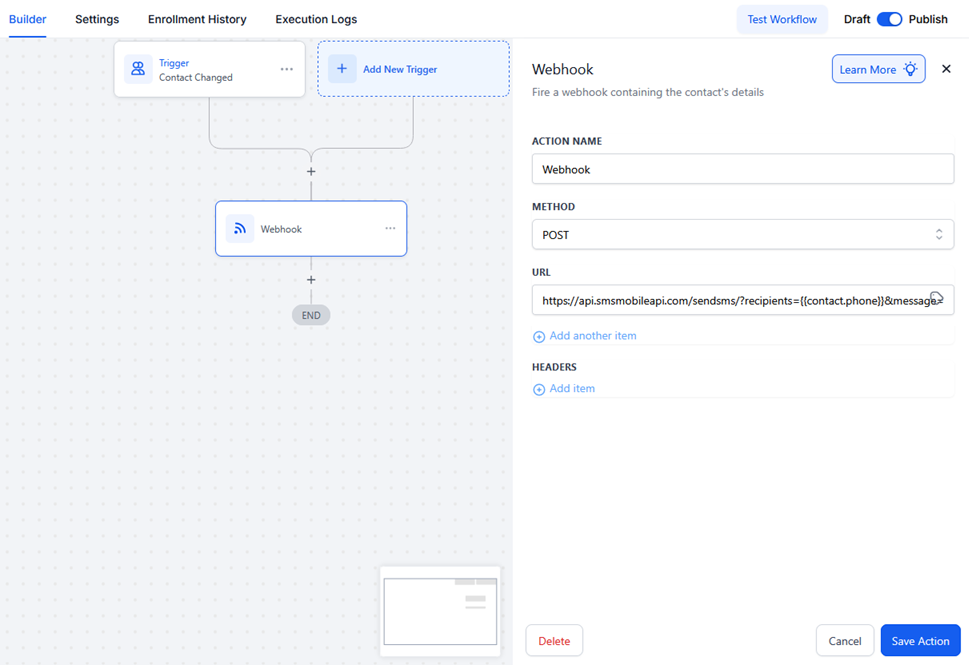
Laten we stap voor stap gaan:
1) Voorwaarden
- Toegang totGoHighLevel(Werkstromen).
- UwSMSMobileAPI API-sleutel(beschikbaar op uw dashboard) ofdownload onze officiële appom uw API-sleutel gratis te krijgen.
- Contacten met een geldig telefoonnummer (gebruik
{{contact.phone}}of uw eigen aangepaste veld).
2) Een workflow aanmaken of openen
- Klik op "Nieuwe Trigger toevoegen."
- Voeg een trekker toe (bijv.Contact gemaakt, Formulier ingediend, Pijpleidingsstadium gewijzigd).
U kunt de workflow binnen houdenOntwerptotdat de test is afgerond.
Bijvoorbeeld, hier wordt een SMS geactiveerd voor elkewijzigingen van het contact, maar natuurlijk kan de workflow worden geactiveerd door elke andere actie.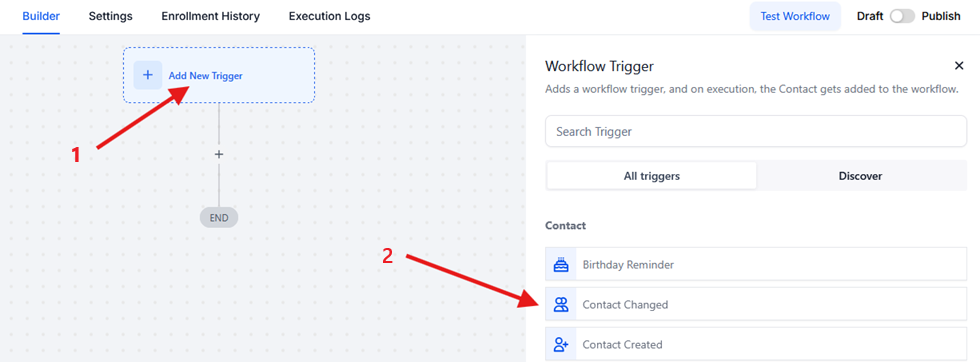
3) Een webhook-actie toevoegen
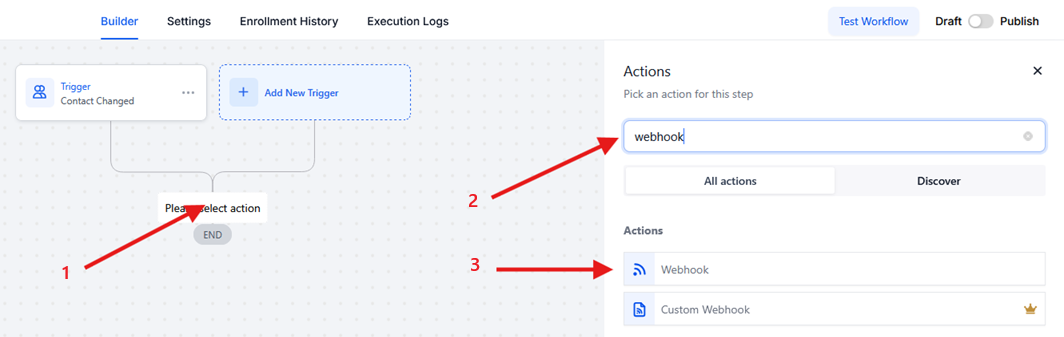
- Klik op de knop om de automatisering (+) / End te voltooien
- ZoekenWebhook.
- Klik op deWebhookknop in de lijst van acties
4) Configureer de webhaak
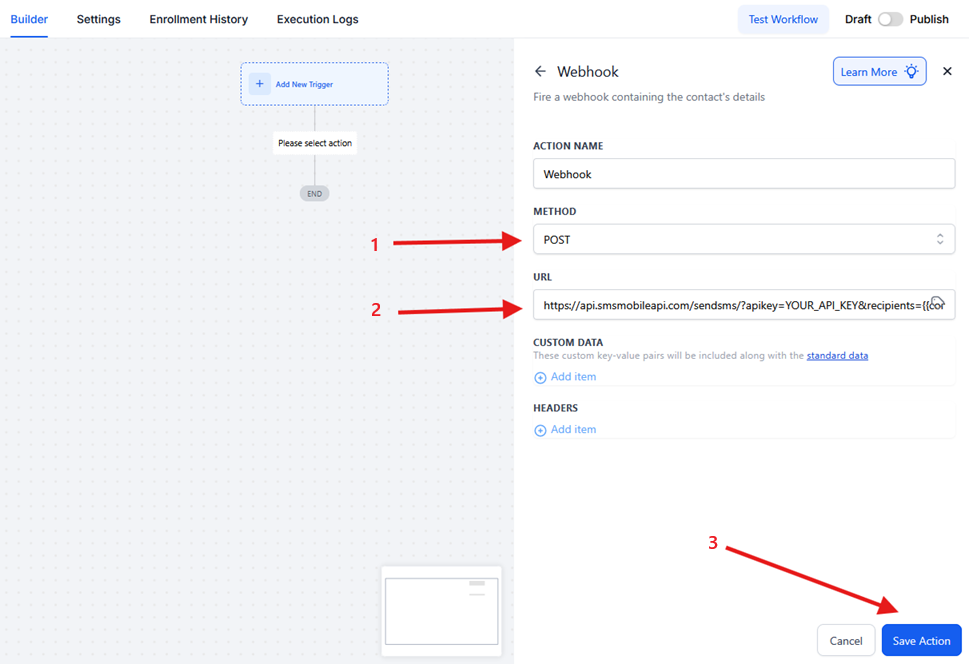
- Methode:
POST - URL:plak uw SMSMobileAPI eindpunt. Voorbeeld:
- Opslaande automatisering
The URL you need to use : https://api.smsmobileapi.com/sendsms/?apikey=YOUR_API_KEY&recipients={{contact.phone}}&message=Hello {{contact.first_name}}Gebruik de onderstaande link voor uw webhook; er verandert niets behalve de API sleutelwaarde en de berichtwaarde.VervangenYOUR_API_KEYmet je echte sleutel.
VervangenHello {{contact.first_name}}met uw bericht en variabelen zoals u wilt
5) (facultatief) Aangepaste gegevens toevoegen
In deAangepaste gegevenssectie, kunt u extra velden sturen indien nodig (ze zijn optioneel):
email = {{contact.email}}name = {{contact.first_name}}
Als je ze niet nodig hebt, laat dit deel leeg.
6) Test de workflow
- KlikTestworkflowen selecteer een contact met een geldig telefoonnummer.
- Controleer GHLUitvoerlogsOm te bevestigen dat de Webhook gevlucht is.
- Open jeSMSMobileAPIdashboard/logs om te controleren of de SMS is verzonden.
7) Publiceren
Als je test er goed uitziet, schakel jePublicerenom de workflow te activeren.
URL-sjablonen kopiëren-plassen
Welkom
https://api.smsmobileapi.com/sendsms/?apikey=YOUR_API_KEY&recipients={{contact.phone}}&message=Hello {{contact.first_name}} Welcome aboard.Herinnering van de afspraak
https://api.smsmobileapi.com/sendsms/?apikey=YOUR_API_KEY&recipients={{contact.phone}}&message=Reminder your appointment is {{appointment.start_time}}. Reply YES to confirm.Lead follow-up
https://api.smsmobileapi.com/sendsms/?apikey=YOUR_API_KEY&recipients={{contact.phone}}&message=Hi {{contact.first_name}} ! thanks for your interest. Reply STOP to opt out.Problemen oplossen
- Geen SMS ontvangen:ervoor zorgen
{{contact.phone}}bestaat en gebruikt internationaal formaat
En zorg ervoor dat de SMSMobileAPI-app draait op je mobiel. - Bericht ziet er gebroken uit:hercoderen van de gehele
message=waarde. - Verschillende telefoonveld:vervangen
{{contact.phone}}met uw aangepaste veld token. - Webhook heeft niet geschoten:Controleer of de trigger daadwerkelijk draait en de workflow niet wordt gepauzeerd.

Officiële mobiele applicatie
De veilige brug tussen uw telefoon, dashboard en API.
SMS- en oproepoperaties gaan door via de officiële SMSMobileAPI-app die op uw aangesloten telefoon is geïnstalleerd. De app koppelt het apparaat veilig met uw account, synchroniseert geautoriseerde evenementen en koppelt het mobiele netwerk aan het dashboard en REST API.
1Mobiele appVergelijkt de telefoon en de SIM
2Versleutelde verwijzingAuthenticeert en beschermt gegevens tijdens de doorvoer
3Dashboard & APIControleert workflows en activiteit
- Ondertekende releases verspreid via de officiële Google Play en Apple App Store lijsten
- Google en Apple platform review, ondertekening en distributie controles
- Veilige apparaat koppeling, HTTPS transport en geauthentiseerde API toegang
- Alleen de rechten die nodig zijn voor de mobiele functies die u aanroept